Manage Your Social Media From ChatGPT and Claude: the SpeedPost Connector
Connect SpeedPost to ChatGPT, Claude or Le Chat: draft your posts, send AI-made images to your media library, build before/afters and stay in control of every post.
Already using ChatGPT or Claude to find post ideas, write captions or create visuals? Until now you then had to copy everything by hand: download the image, upload it to your publishing tool, paste the text, pick the networks…
Not anymore. SpeedPost now connects directly to your AI assistant. You talk to it as usual, and it acts in your SpeedPost account: it drafts posts, files images in your media library, combines them, and lets you approve before anything is published.
What you can ask
Once SpeedPost is connected, here are a few requests your assistant can handle:
- “Schedule an Instagram post tomorrow at 6pm with the strawberry tart photo”
- “Send the image you just made to my SpeedPost media library”
- “Make a before/after from these two site photos, add my logo and draft the post”
- “Reply to this week’s comments”
- “Which post performed best on Facebook this month?”
Your assistant also knows your brand identity (tone, colours, hashtags) and each network’s rules: text length, image formats, photos per carousel.
Connect SpeedPost in 2 minutes
You connect once, with a single address:
https://mcp.speedpost.fr/mcp- In your assistant, open the connectors settings (Claude: Settings → Connectors; ChatGPT: Settings → Apps & Connectors, with “Developer mode” turned on; Le Chat: Intelligence → Connectors).
- Add a custom connector and paste the address above.
- A SpeedPost page opens: sign in if needed, check what the assistant will be able to do, then click “Allow”.
That’s it. The step-by-step guide for each assistant (including Claude Code, Cursor and VS Code) is on the Connect an AI assistant page (in French).
Send an AI-made image to SpeedPost
This is the most requested feature: your assistant has just generated a great visual, or you gave it a photo, and you want to post it.

How the file is sent depends on the assistant:
- ChatGPT: nothing to set up. Create or attach the image, then ask “Send this image to my SpeedPost media library”. On the mobile app, if it doesn’t come through, ask again from chatgpt.com.
- Claude (claude.ai and apps): Claude sends the file with its code execution tool. Once only, go to Settings → Capabilities → Code execution and add
api.speedpost.frto the allowed domains. - Claude Code, Cursor, VS Code: automatic. The assistant gets a single-use upload link, valid for 15 minutes, and drops the file from your computer there.
- An image on the web: just give its link, SpeedPost fetches it.
Either way, the image lands in your media library next to your other photos, ready to use in a post — in the app or from your assistant.
Combine your images without an editing tool
Once your images are in SpeedPost, your assistant can combine them for you.
Before/after, grids, layouts
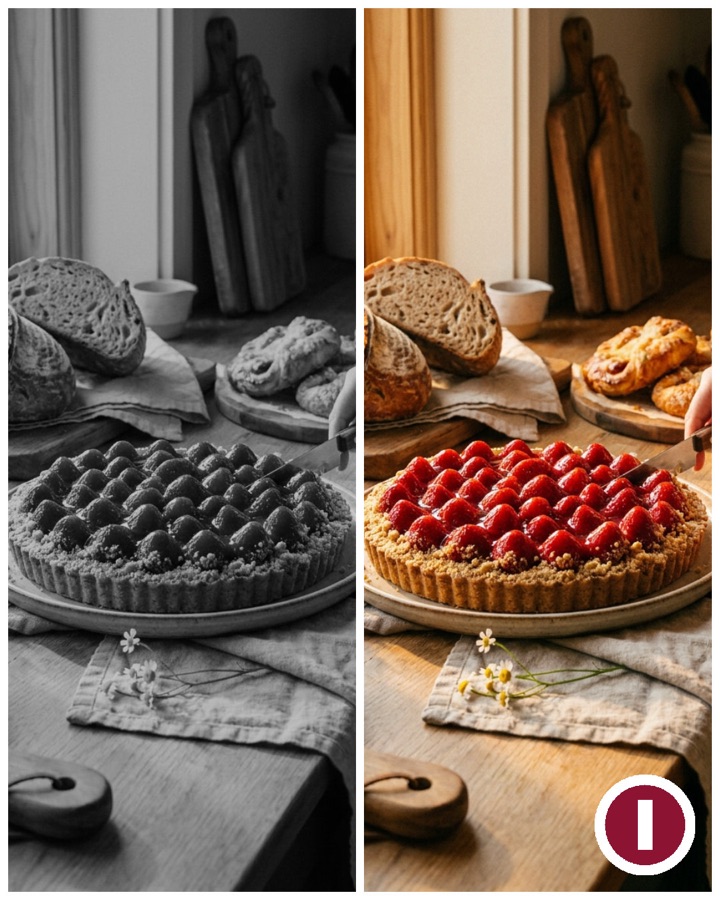
Ask for a before/after, a grid, two photos side by side or stacked, in the format you need: Instagram portrait (4:5), square, story (9:16) or landscape. Your photos stay exactly as they are, just cropped and assembled. It’s free: no AI credit used.
Your logo on the photo
Your assistant can also place your logo, a QR code or a badge on an image, in the corner you choose, at the size and opacity you want. Also free, and pixel-perfect.
AI blending
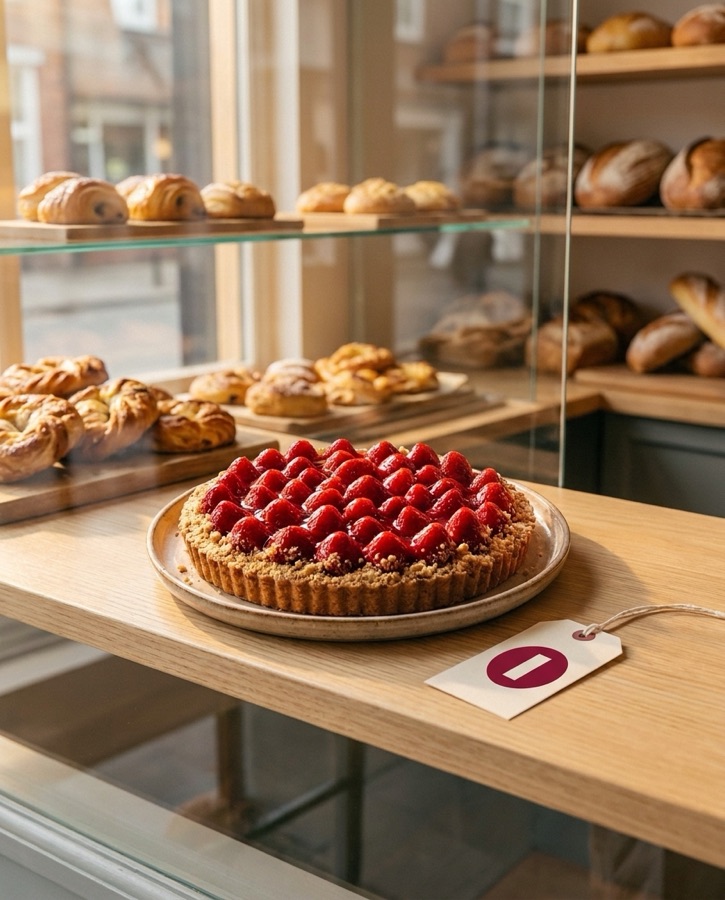
To go further, the AI Studio (a second, optional connector) creates a brand-new image from several photos and an instruction: “put this tart in a bakery window with my logo on the tag”. Each creation uses 1 SpeedPost AI credit.
You stay in control
Letting an assistant act on your social accounts is a matter of trust, so we set strict rules:
- Nothing is published without your approval. Your assistant asks for confirmation before every post, deletion or public reply. By default it prepares drafts you review in SpeedPost.
- You choose what it can do when you connect, and you can revoke access at any time in Settings → Connected AI assistants.
- Your password is never shared with the assistant: the connection uses a secure authorisation, like “Sign in with Google”.
- Safety limits prevent runaway behaviour: a daily cap on posts, single-use upload links that expire after 15 minutes.
Which assistants work?
SpeedPost works with every assistant that supports MCP (Model Context Protocol) connectors:
- Claude (Pro, Max, Team and Enterprise plans; claude.ai, apps, Claude Code)
- ChatGPT (Plus, Pro, Business and Enterprise plans, via developer mode)
- Le Chat by Mistral
- Cursor and VS Code
Where to start
- If you don’t have an account yet, create your SpeedPost account and connect your social networks.
- Follow the Connect an AI assistant guide for your assistant.
- Try a first simple request: “What’s scheduled this week?”, then “Send this image to my SpeedPost media library and turn it into an Instagram post”.
Your AI assistant becomes your community manager, and SpeedPost takes care of posting in the right place, in the right format, at the right time.
Manage your social media with SpeedPost
Create, schedule and publish your content across 14 platforms from a single dashboard.
Start for free